Posts Tagged ‘switch’

DockView Shows App Thumbnails

Monday, August 30th, 2010

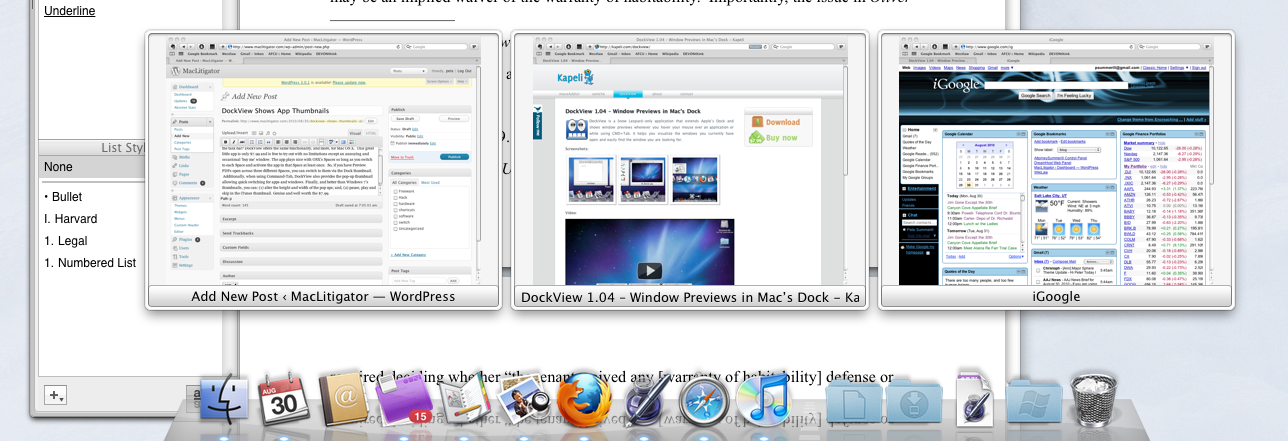
Jealous of Windows 7′s ‘thumbnails’ that show up when the mouse hovers over an app on the task bar? DockView offers the same functionality, and more, for Mac OS X.  This great little app is only $7.99 and is free to try out with no limitations except an annoying and occasional ‘buy me’ window. The app plays nice with OSX’s Spaces so long as you switch to each Space and activate the app in that Space at least once.  So, if you have Preview PDFs open across three different Spaces, you can switch to them via the Dock thumbnail.  Additionally, when using Command-Tab, DockView also provides the pop-up thumbnail allowing quick switching for apps and windows. Finally, and better than Windows 7′s thumbnails, you can:

(1) alter the height and width of the pop ups; and, (2) pause, play and skip in the iTunes thumbnail. Genius and well worth the $7.99.

3 Reasons to Join MILO

Friday, September 11th, 2009

MILO is the Google Groups forum “Macs In Law Offices.” Recently, there have been three reallyMILO Logo great posts by users on that forum.

  1. You can tether an iPhone to your Mac for internet access over the 3G network without hacking or jailbreaking. MILO user Christian Frank pointed everyone to www.benm.at. But, there are better instructions at mydigitallife.
  2. MILO user Grace Suarez revealed a superb Firefox plug in called CiteGenie. If you’ve ever struggled with getting a properly quoted and cited copy/paste from Westlaw or Lexis into your document, this plugin eliminates hassle, allowing you to focus on the legal and analytical aspect of your work. CiteGenie truly represents the goal of getting computers to do the grunt work so you can focus on higher reasoning skills.
  3. You cannot tether an iPhone with the new 3.1 software update, as hinted at by MILO user Rob Ruffner and confirmed by comments in the mydigitallife how-to.

MILO is a great place to learn and ask questions, a superb resource for any Mac using lawyer.

Switch Resources

Monday, December 22nd, 2008

If you are one of the lucky folks making the switch to Mac by way of a gift this year, you might want to check out these two really great resources. First, The Unauthorized Apple Weblog has a great line of posts on switching.  They cover everything in their Mac 101 series from Address Book to booting from a USB drive.

Then, of course, Apple has their own resource for switchers, Switch 101. It is a bit more basic, but much more organized the TUAW’s Mac 101 series. Finally, don’t forget that you can get your data migrated over from a PC with the help of a genius at an Apple Store Genius Bar… just remember to make an appointment before you go.

Finally, when all else fails, hit Google. The venerable search behemoth can probably point you in the right direction, especially if you use site focused searching. For example, don’t just hammer search terms in, but search a specific site (or even subsite) like this: 

site:http://www.apple.com/support/ itunes deauthorize

Typing the above will pull all references out of the support pages at Apple on deauthorizing computers from iTunes.

Happy Holidays!

A Gripe and A Fix.

Thursday, August 14th, 2008

Part of the Apple experience comes from aesthetics. The hardware to the software all look so good and make interfacing with a computer a more human experience, less geeky and, I believe, makes work more enjoyable… of course a stable OS goes a long way too.

But, Apple (and many other manufacturers) miss the boat by not including a ‘Pointing Stick’ style mouse in their laptops. Years of use with IBM laptops (now Lenovo) convinced me the convenience of a Trackpoint or Pointing Stick on the keyboard outweighed the ugly. Moreover, after adapting to Apple’s trackpad only configuration, I have wrist pain in my right wrist from mousing. Switching to a lefty mouser helps, but probably only forestalls the inevitable, pain developing in the left wrist.

Although not a full-time solution, there are available desktop USB keyboards with built-in Pointing Sticks which a Macbook will recognize, so that while at a desk, an alternative and wrist relieving option exists.

Lenovo sells a full-size Ultra-Nav USB Keyboard that has both a Trackpoint and Trackpad option built in. Because it has a Windows key (shudder), you still get your command key for the Mac. The keyboard also has additional USB ports so your not going to lose a USB port by plugging it in. It costs a measly $99 and, as an added benefit, you get that beautiful IBM snap on the keyboard, a huge benefit for any touch typist. If you really want to kick it old school, PCkeyboard.com sells an old style IBM keyboard, the Endurapro, that actually uses springs underneath the keys. This is that old-school clickety-clackety sounding keyboard, but those springs and the tactile feedback are much missed by many typing pros, authors, writers and geeks. The Endurapro does not, however, have additional USB ports but does have that ugly retro welcome to 1991 feel that you just can’t find anywhere else. It retails for $99 as well.

Format A USB Drive

Wednesday, June 18th, 2008

Mac OS X, despite being one of the most intuitive and user friendly OSes on the planet, adopts a very obtuse procedure when it comes to formatting a USB drive. Every single time you get a new USB drive it comes formatted in FAT32. Of course, Time Machine will only work on a drive formatted as Mac OS X. So, pop open Disk Utility, select the drive and hit the ‘Erase’ tab… only to find out Disk Utility refuses to erase a FAT32 drive. Grrr. Instead of the ‘Erase’ tab, select the ‘Partition’ tab in Disk Utility, click the drop down for ‘Volume Scheme’ and select ’1 Partition.’ Name the disk in the box provided and, on the drop down format box, choose ‘Mac OS Extended (Journaled).’ Hit the apply button, and a pop-up appears warning you that you are about to erase the disk (finally!) hit continue and you are on your way.

Case Analysis Using Journler – The Alternative Approach

Sunday, June 8th, 2008

Response to using the Applescript for Case Analysis led to some, ummm, issues to say the least. Some people don’t like the Applescript solution because it requires a full license for Adobe Acrobat Pro, others just can’t get the script to load and work properly. So, this last week, the workflow for using Journler in case analysis underwent a hard look and, surprise, surprise… sometimes things get more complicated than they need to be. In short, the following workflow eliminates the need for either Applescript or a full license to Adobe Acrobat and creates a simpler more efficient workflow as well. This entry will also go into more detail about setting up Journler itself, since there has been some confusion on that topic as well.

Occam’s Razor – Cut the script & the cost of Adobe.

The problem: You have a bunch of PDF files (some large, some small) numbering the hundreds or thousands of pages and we both know that there are only few relevant pages in there. The goal is to extract the nuggets of information and gather them in a single place so that they can all be viewed together, including the ability to see them in chronological order as well as filtered by issue, witness etc.

Pre-case analysis document preparation: The first, but not entirely necessary step, should be to OCR the documents. The second, and in my view, necessary step, Bates stamp those documents in a meaningful way. A good start might be to choose the first two letters from the adverse party’s names as the prefix. So, e.g., Smith v. Jones becomes SMJO000001 as a base bates number. You can get a bates stamper here which limits ‘batch’ stamping to 10 files at time if unregistered but is otherwise free.

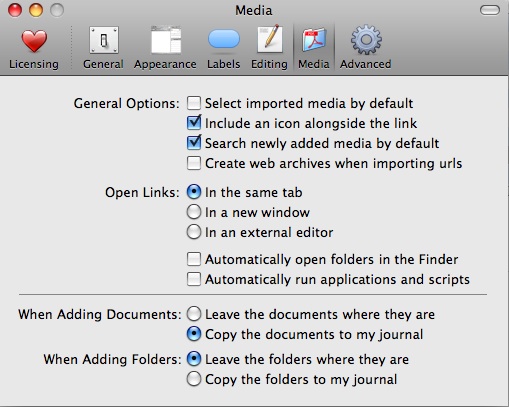
Pre-case analysis Journler set up: Journler Preferences>Media (Command-,) should be set up so that “When adding new documents: Copy the documents to my journal” is selected. This will ensure that the document will be copied into Journler, rather than an alias which might later get broken if the original file or folder gets moved. Journler Preferences>Advanced should be set to “Use drop box for fast imports.”

Smart folders should be set up in Journler which, at the very least, reflect the Client/Project Name on which you are working. Typically, I set up a main ‘client’ folder which requires that all items (and subfolders) have the Journler category “Client.” Then, each client gets their own smart folder which requires the client name in the in the Journler category field. You might also consider setting up a sub-folder under the client name to reflect a general category, such as ‘Medical,’ or whatever fits your purpose.

Case analysis: Open your PDF in Preview. When you get to that first ‘relevant’ document there are a number of options for getting it into Journler. If the page has OCR’d text, highlight the relevant text and hit Shift-Command-J. This will open a ‘new entry dialog’ pop-up for Journler. You can chose the ‘smart folder’ where you want to add a new entry and the entry will automatically be tagged and categorized per all requirements of the smart folder and the smart folder’s parent folders. In the example below, the new entry would be Categorized as “Client D__ R__” and tagged as “medical.” Downsides to this first approach include the need to have OCR text available on the page and the fact that the page/document itself does not get copied into Journler for later review. The second issue can be remedied by opening the side bar in Preview and literally dragging the image representing the page into the body of the Journler entry. The drag-n-drop method is nice because it mimics a typical law office workflow where relevant documents are picked out by an attorney and copied/added into a summary by a paralegal.

The second, and my preferred method, is that with the ‘relevant page’ in view, hit Command-c, then hit Command-n. This should open a new Preview window with the relevant page extracted and ready to be sent to Journler. Remember that the bates number is on there, and because Spotlight indexes those bates numbers, you can return to the document/page in its original context simply by typing the bates number into Spotlight. Now, to send this page to Journler hit Command-Shift-S to get the save dialog. Choose Desktop>Journler Drop Box. Doing so will bring up the same dialog as above, but now the page itself gets copied into Journler as a resource.

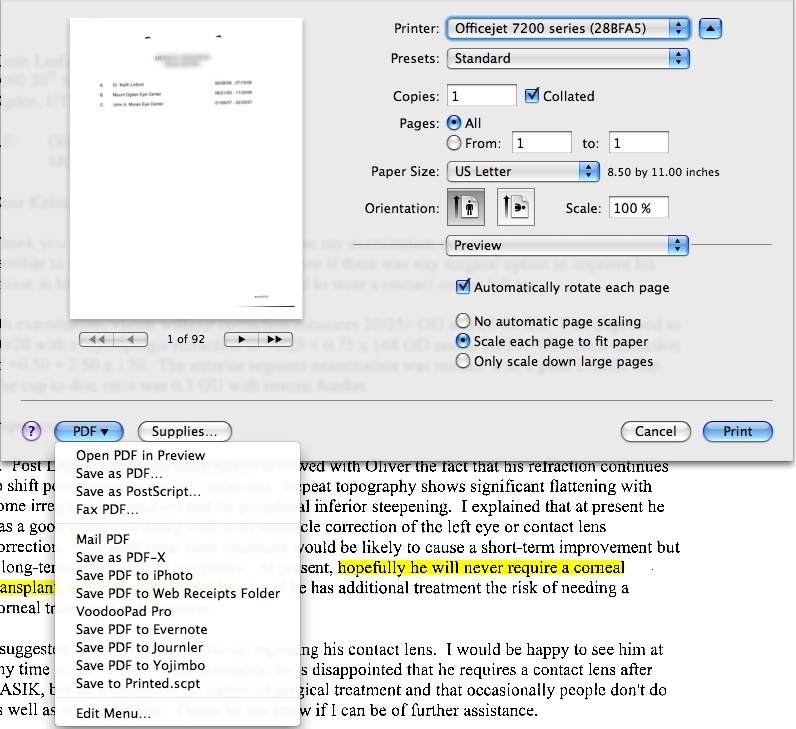
If you have more than one page, Preview will not allow you to create a ‘new’ document from multiple pages. The solution here is to hit Command-p (or print), choose the page range, then click on the “PDF” drop down in the print dialog and choose “Save to Journler.” This will import the full page range as a resource in a new Journler entry under the same dialog as above. Remember, to get the full print dialog allowing you to select individual pages, you need to click on the little blue down arrow next to the printer selection. Note that there are very few ‘clicks’ and most of the entry can be done using the keyboard, saving valuable time in mousing around.

Finally, and regardless of any of the above methods, hit ‘complete import’ and then switch to Journler. You can edit the “Created” date to reflect the actual date relevant to the entry, add tags, make notes in the body or whatever. You should also explore Journler’s powerful Lexicon feature (quite literally an index of every word in Journler and related entries) as well as Journler’s very powerful search and filter dialogs.

Obviously, this alternative approach is much simpler than the previous Applescript/Adobe Pro method and will work for any item that can be opened in Preview, including JPGs, TIFFS etc. However, since each of those items is often a single ‘page’ you might just want to drag and drop the item into Journler.

These methods readily grant the Mac using attorney the ability to not only replace Casemap, but to actually exceed Casemap’s analysis. Journler allows you to view multiple entries and cases at once, in multiple tabs. The full text search and free form approach also make it a breeze to customize your analysis well beyond the static limitations of Casemap. Because Journler encompasses all your cases, you are free to re-use information from other cases unlike Casemap’s one-case-at-a-time approach. Further, using Journler need not be the ‘overkill’ that some view consider Casemap to be. Because it can be as simple or deep as you need, Journler is a definite leap forward in case analysis as compared to Casemap.

Open Office 3.0 Beta

Thursday, May 8th, 2008

Open Office 3.0 Beta is now available for Mac. It is of note because, previously, to run Open Office on the Mac required X11 plug-in and, frankly, felt too clunky, slow and buggy to use. Even though Open Office 3.0 is still in beta, it is an appreciable improvement over 2.x. Took it for a short spin and it does a really great job opening Wordperfect documents, with correct text rendering on-screen, something which AbiWord still can’t seem to get right.

If you’re tired of trudging through AbiWord to open those Wordperfect documents, give Open Office 3.0 beta a spin.

Windows Collapsing on Itself?

Wednesday, April 23rd, 2008

I watched about a year ago as a lawyer was forced to switch his time and billing from a legacy DOS operation into Windows XP because staff could no longer print billing invoices. I may be an ‘early adopter’ for Mac in litigation use, but the extreme of hanging on to old technology out of laziness and fear seems much less appealing. However, for those who love legacy programs like that time and billing in DOS, you might want to read an article on ARS Technica detailing why Windows is slowly but surely dying. In nutshell:

Mac OS X draws “[c]onscientious developers, who care about making an application that looks good, works well, and exploits the capabilities of the OS… Windows [] has never struck me as being like that. The third-party software ecosystem for Windows is … incredibly shoddy. Most Windows applications—from both major software companies and minor ones alike—are ugly, poorly-thought-out, clunky pieces of crap. While there are a few artisan developers for Windows, most Windows devs just don’t care.

So, it is probably correct to say that more and more will ‘switch’ to Mac. The availability of Parallels and VMWare to run your ‘legacy’ Windows apps while transitioning makes it just that much easier. More than anything, virtualization brought me to switch. While ‘playing’ with Mac OS X, I became less and less tolerant of the Windows environment to the point that, well, I rarely boot up WinXP except when needed to get at some bit of information.

From Win32 to Cocoa: a Windows user’s conversion to Mac OS X

Case Analysis Using Journler

Saturday, April 19th, 2008

Adobe2Journler!

Need to summarize some depositions? Need to summarize/build a chronology of a huge medical chart? Often litigators face the daunting challenge of collecting chunks of discrete facts/information from a diverse set of documents, usually Adobe PDF files. If you are using Adobe Acrobat Pro, Journler can help with a little AppleScript. If you have never used AppleScripts before, don’t worry, it’s no big deal. But, to make this system/script combo effective, you really do need to either (1) save the script as an application; or, (2) use a launcher such as Butler or Quicksilver. If you use either Butler or Quicksilver already, then I am assuming you don’t need instruction on how to launch an AppleScript from within Butler/Quicksilver. So, for the remainder, this article assumes you are saving the AppleScript as an application.

The Script

Here’s the nut, the pivot, the basis on which you can quickly extract those golden nuggets from deposition transcripts, medical charts, long winded contracts or other voluminous discovery. The script will send to Journler either: (1) a new entry in Journler with a link back to the resource, document name, file path, a specific page number reference and all tags associated with the smart folder to which you are adding; or, (2) append the currently selected Journler entry with a new resource, document name, file path, a specific page number reference to the currently selected entry in Journler. Update: WordPress has been rendering the em-dashes to dashes and straight quotes to smart quotes… Script Editor and Applescript hate those. So, em-dashes are stripped from code below, but you will still need to use find and replace to change quotes or here is a downloadable text file (adobe2journlerv1) you can open, cut and paste.

tell application “Adobe Acrobat Professional”

activate
if (count of documents) is 0 then
beep
display dialog “No documents found.” buttons {“•”} default button 1 giving up after 3
return

end if
set Document_Name to name of active doc
set File_Path to file alias of active doc
set Page_Number to page number of PDF Window 1

end tell
tell application “System Events”
activate
set New_Or_Selected_Entry to the button returned of (display dialog “Would you like to create a new entry or add to the currently selected entry?” buttons {“New”, “Selected”})

end tell
if New_Or_Selected_Entry = “Selected” then
tell application “Journler”
activate
set Selected_Entry to (selected entries)
if Selected_Entry is {} then
display dialog “No Entry Selected!” with icon 0
else
if (count Selected_Entry) = 1 then
set the_Entry to item 1 of Selected_Entry

else
end if
end if
set Original_Text to rich text of the_Entry
set rich text of the_Entry to Original_Text & return & ” ****” & return & “Document Name: ” & (Document_Name as string) & return & “Page Number: ” & (Page_Number as string) & return
make new resource with properties {owner:the_Entry, type:media, original path:(File_Path as alias), aliased:true}
set the selected entries to {the_Entry}
end tell

else
tell application “Finder”
duplicate file File_Path to “Macintosh HD:Users:username :D ocuments:Journler:Journler Drop Box” with replacing
end tell
tell application “Journler”
activate
end tell
set the clipboard to ” ****” & return & “Document Name: ” & (Document_Name as string) & return & “Page Number: ” & (Page_Number as string) & return & “File Path: ” & (File_Path as string)
end if

If you’ve never worked with AppleScript, it probably looks like a lot of hooey. Don’t sweat it. All you need to do is copy all of the above, open up Script Editor, and paste the script into the main pane. Next, make the ‘path’ relative to your system. This means substituting your ‘username’ (in “Macintosh HD:Users:username :D ocuments:Journler:Journler Drop Box” see bold/underline/italics above in script) with your username. If your system is set up as most Mac defaults, you should only need to change the username. Finally, choose “Save As” name it Adobe2Journler choose file format as “Application” and save it to Applications>Utilities.

Reap the Benefits.

Now the fun part… you get to see this wonderous thing Journler, AppleScript & Adobe Acrobat Pro in action. Set up a smart folder in Journler and set conditions for it to require whatever tags, categories, or comments you want to use to sort your information. For example:

Now, with a smart folder set up, hit command/space and bring up spotlight. Type Adobe2Journler (or as much as necessary to pull up the Adobe2Journler application) hit return and it launches the application. A dialog comes up asking if you want to create a ‘new entry’ or use the currently ‘selected entry.’

Choosing ‘new entry’ will bring up a dialog which directs you to choose the smart folder you want to add the entry into. You can also add additional tags or categories at this point. Click complete import and, finally, edit the individual entry in Journler heart’s content

Because this is the first time for entering this resource on this ‘new entry’ you need to hit command-v to get the document path, file name & page number inserted into Journler. If you chose ‘selected entry’ you should already have an entry selected before launching Adobe2Journler and the document path, file name & page number references will be appended to that selected entry.

Sum Up.

Once Journler opens, edit the ‘created date’ to reflect whatever date your document review dictates. You can then add text or notes or copy and paste from an OCR’d Adobe document directly into the Journler entry. One method is to create a ‘new entry’ for each significant date you come across while doing document review, and then simply use ‘selected entry’ for appending information to that date. Of course, more complex cases may require that issues/people have their own separate dated entries.

For deposition summaries, dates are not so important. Get your transcripts in Adobe PDF format, then use Adobe2Journler to send the page reference to Journler for tagging, categorization or commentary. You can also copy and paste from your deposition transcript so that you can see the chunk of text right there in the entry.

Final Word.

This is my first attempt at scripting anything outside of tutorials, so it’s not perfect and the hope is that those with more sophisticate skills will pick it up and run with it. In other words, YMMV… but if you have any skills at scripting, any feedback, input and contribution is much appreciated.

Also, Adobe Acrobat Pro is an unfortunate, but necessary, evil. Apple has discontinued scripting capabilities for Preview.

Finally, a few caveats about using this script. All paths are relative, you need to adjust them and there are no warranties, express, implied or otherwise associated with this script. Also, you can only have one Adobe document open at a time while using Adobe2Journler… If you have more than one document open, you can get a file reference to something other than what you intend.

adobe2journlerv1

Journler… but not journaling.

Tuesday, April 8th, 2008


Don’t Let The Name Fool You.

The name ‘Journler’ doesn’t do justice for what can be done with this software. Although originally designed as a journaling application, the scope of data which this little application can handle goes way beyond any mere journal keeping functions.  Journler blends and balances power, customization, flexibility and still retains a simplicity that makes it instantly accessible.  The remainder of this post (and a few more to follow) will address how to replace Casemap with Journler, the best thing you can do is download it and play with it.


Casemap Replaced, And Then Some.

Casemap provides a dumping ground for case information, but a very structured and rigid dumping ground. In the center pane of Casemap, you get the ‘meat’ of your data in spreadsheet format. On the left, you can select different spreadsheets for Facts, Issues, Documents, People, Places, etc. Along the top bar, the most important aspect of Casemap is the ability to filter any of these spreadsheets by any of the other items, or even by a single search word.  So, for instance, you can filter your Fact Spreadsheet to display just those entries pertaining to the person “Joe Smith” and the document “Smoking Gun.”  


casemap.jpg 


Journler, by contrast, doesn’t come with a predefined left pane or, for that matter, structured data entry into spreadsheets. Casemap has a ‘box for everything’ and everything in its box approach.  In Journler, the top level on the left is labeled “Journal.” This is where everything goes…. literally everything.  Unlike Casemap, using Journaler does not require a separate file for each case.  You can literally dump everything into Journler through the day as you work. Now, in order to focus on a specific case, you create Smart Folders in that left pane. Smart Folders insist that an entry have particular text, tags, comments or categories.  What’s more, you can take any entry from the main Journal entry, drop it on a smart folder and (with the exception of generalized text) it will automatically inherit those tags, categories, or comments required to become a member of the Smart Folder. Smart Folders can be nested so that a sub-Smart Folder must have all the tags etc. associated with the parent was well as those defined for the sub-Folder.  What this means is that you can structure Smart Folders as seen on the left, and then use sub-Smart Folders to further filter down the entries.  Getting interesting, right?


bigpic.jpg


So, to mimic the Casemap functionality, simply create a Smart Folder with attributes that require the entry to contain the tag “Witness” or “Person” or whatever you want. Of course, start broadly, with a “Client” Smart Folder, then subfolders for each client, then subfolders within those to contain the specific data you want to filter on. You can create and destroy Smart Folders at a whim, without ever losing the entry itself. Which, brings us to the entry itself.


Unlike Casemap, all entries are listed in a center pane, but then directly below the entry you get the details of that entry, including the text, any jpgs, pdfs, tiffs, mp3s, web pages. On the far right, you can see the resources associated with the particular entry, clicking on the resource opens it immediately in the main pane. If the resource is associated with more than one entry, you can click the arrow next to it and it will list all other entries associated with that resource.  


Each entry can be associated with any number of Smart Folders, and can be cross-linked to any other entry. In fact, if you chose the entry name wisely, it will become an automatic WikiWord when entered into another entry and a link is automatically created back to the entry. So, for example, an entry titled Medical Emergency typed as MedicalEmergency creates the wiki link. In order to set up chronologies, use the ‘creation date’ box on the entry to give it the date you desire… in other words, ignore the creation date and use your own date when you want to create a historical chronology of entries that can be sorted by date. 


Finally, when a particular Smart Folder is selected on the left, only those entries associated with the Smart Folder will be searched and filtered. At the top right of Journler, you can begin typing and Journler begins filtering immediately all those entries which contain any of the text you are typing and it includes the text of resources which have readable text (pdfs, mainly). Further, the filter button next to the search box allows you to filter the entries based on a particular tag, comment, category or whatever.


The Benefits.

Journler saves all data in a non-proprietary text file and is fully Spotlight searchable. By using Journler, you have access to all your knowledge, on past cases, on research cases on other files, right at your finger tips without having to ever open another file to get there. Journler offers a tabbed interface, so you can look, compare, contrast and analyze to your heart’s delight, or until your spouse tells you it’s time to go to sleep. Journler is free for personal use… Yes, free. However, I highly encourage you to pay for it. The developer, Phil Dow, is literally building this software up on his own. A business license is only $34.95 and an incredible bargain. Plus, when 2.6 hits, it will be strictly pay software but you’ll get a free upgrade for having purchased early.


The Limitations.

At present, there are some shortcomings when compared to the Casemap suite. Most notably, an absence of transcript management and bates stamping.  There are some other little issues, but considering the benefits they mean literally nothing. As to the transcript management problem, stay tuned here as I will be posting an AppleScript in the near future that will make digesting any transcript (or any lengthy PDF) a breeze. As to the bates stamping issue, there is already lots of software out there that allows you to bates stamp PDFs, including Acrobat Pro for Mac. Also, and yet to come, will be a further exploration/explanation of the contextual click options, the Lexicon (woah, just play with it after you have a few hundred entries) and a way to tag without tagging, if that makes any sense.


A Final Word.

Go download Journler, play with it and play with it some more. Drop comments and suggestions here. Visit the Journler forums as they have a huge support base with eager users just waiting to help answer any questions.