Copy On Your iPad, Paste On Your Mac
TranscriptPad (iOS only) is by far and away my favorite method of digesting depositions and other transcribed testimony. But, the heavy lifting often gets done on the Mac side.
This left me needlessly reentering information, essentially straddling two different platforms. A recent post on Practically Efficient highlighted a very useful utility that works and synchronizes between both platforms for anything placed on the clipboard of the other platform. Copied is available through the IOS as well as the Apple app store. Price is minimal (iOS $1.99 upgrade/Mac $7.99) and well worth every penny. Once installed, anything placed on the clipboard of your iOS device synchronizes via iCloud and becomes 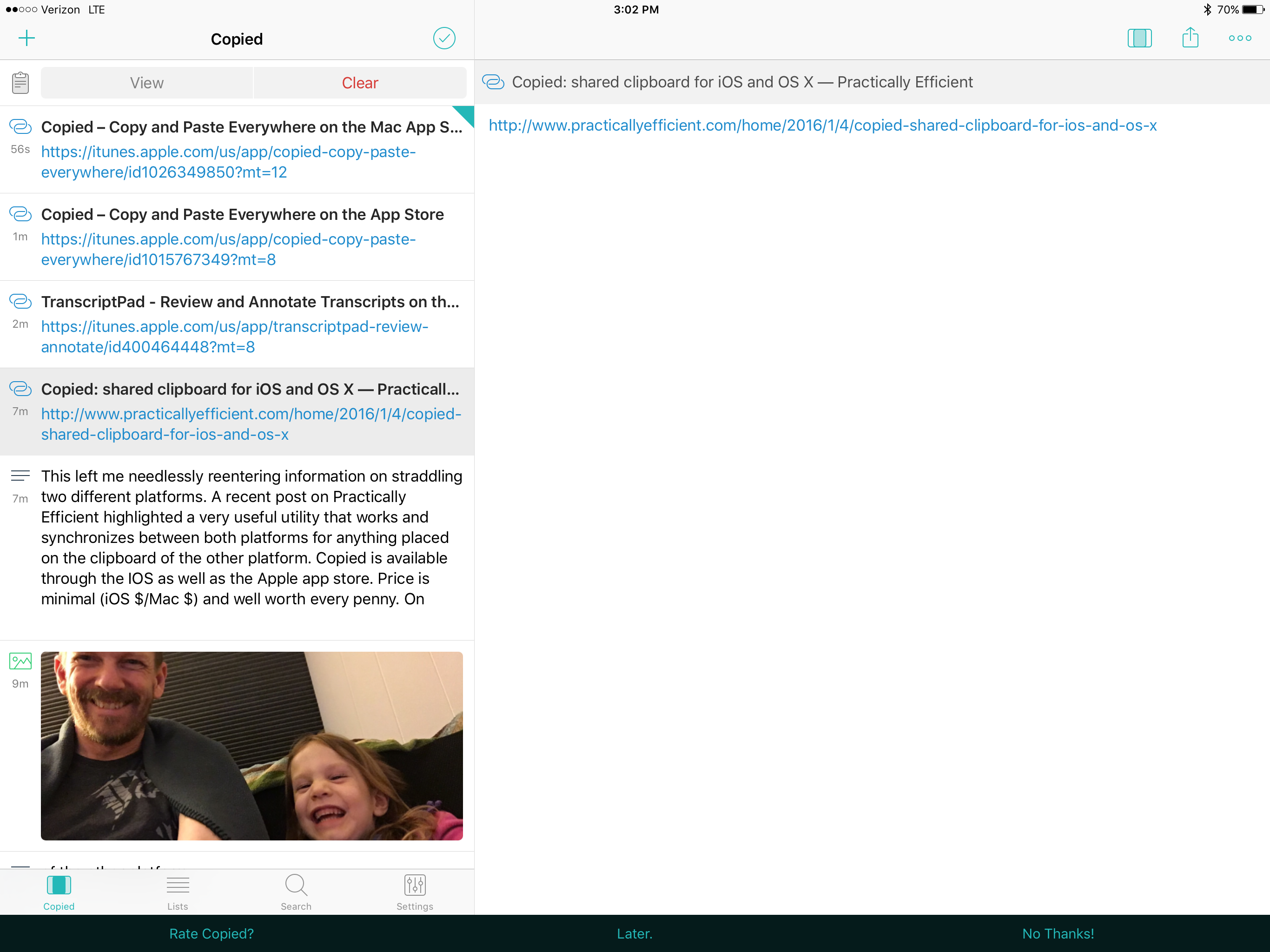 immediately available on any Mac running the software. Additionally, it works the other direction equally well. The utility also incorporates a clipboard manager that stores frequently used snippets of text and any other items that can be copied to the clipboard such as image files and URLs. On the iPad side, Copied includes utilities to transform text, e.g. convert text to upper/lower/title case; remove extra white space; and, find and replace. The ability to quickly format chunks of text on the iPad is particularly useful.



 1.
1.