Response to using the Applescript for Case Analysis led to some, ummm, issues to say the least. Some people don’t like the Applescript solution because it requires a full license for Adobe Acrobat Pro, others just can’t get the script to load and work properly. So, this last week, the workflow for using Journler in case analysis underwent a hard look and, surprise, surprise… sometimes things get more complicated than they need to be. In short, the following workflow eliminates the need for either Applescript or a full license to Adobe Acrobat and creates a simpler more efficient workflow as well. This entry will also go into more detail about setting up Journler itself, since there has been some confusion on that topic as well.
Occam’s Razor – Cut the script & the cost of Adobe.
The problem: You have a bunch of PDF files (some large, some small) numbering the hundreds or thousands of pages and we both know that there are only few relevant pages in there. The goal is to extract the nuggets of information and gather them in a single place so that they can all be viewed together, including the ability to see them in chronological order as well as filtered by issue, witness etc.
Pre-case analysis document preparation: The first, but not entirely necessary step, should be to OCR the documents. The second, and in my view, necessary step, Bates stamp those documents in a meaningful way. A good start might be to choose the first two letters from the adverse party’s names as the prefix. So, e.g., Smith v. Jones becomes SMJO000001 as a base bates number. You can get a bates stamper here which limits ‘batch’ stamping to 10 files at time if unregistered but is otherwise free.
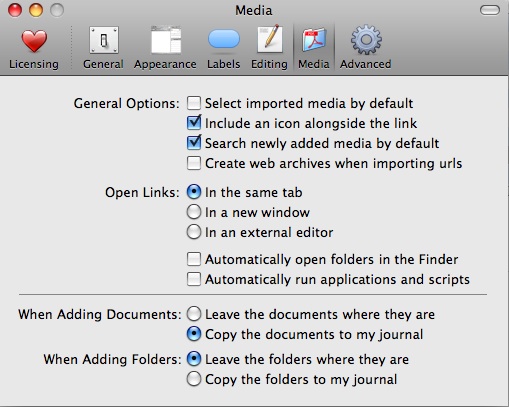
Pre-case analysis Journler set up: Journler Preferences>Media (Command-,) should be set up so that “When 
 adding new documents: Copy the documents to my journal” is selected. This will ensure that the document will be copied into Journler, rather than an alias which might later get broken if the original file or folder gets moved. Journler Preferences>Advanced should be set to “Use drop box for fast imports.”
Smart folders should be set up in Journler which, at the very least, reflect the Client/Project Name on which you are working. Typically, I set up a main ‘client’ folder which requires that all items (and subfolders) have the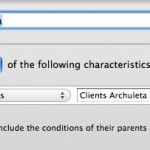 Journler category “Client.” Then, each client gets their own smart folder which requires the client name in the in the Journler category field. You might also consider setting up a sub-folder under the client name to reflect a general category, such as ‘Medical,’ or whatever fits your purpose.
Case analysis: Open your PDF in Preview. When you get to that first ‘relevant’ document there are a number of options for getting it into Journler. If the page has OCR’d text, highlight the relevant text and hit Shift-Command-J. This will open a ‘new entry dialog’ pop-up for Journler. You can chose the ‘smart folder’ where you want to add a new entry and the entry will automatically be tagged and categorized per all requirements of the smart folder and the smart folder’s parent folders. In the example below, the new entry would be Categorized as “Client D__ R__” and tagged as “medical.” Downsides to this first approach include the need to have OCR text available on the page and the fact that the page/document itself does not get copied into Journler for later review. The second issue can be remedied by opening the side bar in Preview and literally dragging the image representing the page into the body of the Journler entry. The drag-n-drop method is nice because it mimics a typical law office workflow where relevant documents are picked out by an attorney and copied/added into a summary by a paralegal.
The second, and my preferred method, is that with the ‘relevant page’ in view, hit Command-c, then hit Command-n. This should open a new Preview window with the relevant page extracted and ready to be sent to Journler. Remember that the bates number is on there, and because Spotlight indexes those bates numbers, you can return to the document/page in its original context simply by typing the bates number into Spotlight. Now, to send this page to Journler hit Command-Shift-S to get the save dialog. Choose Desktop>Journler Drop Box. Doing so will bring up the same dialog as above, but now the page itself gets copied into Journler as a resource.
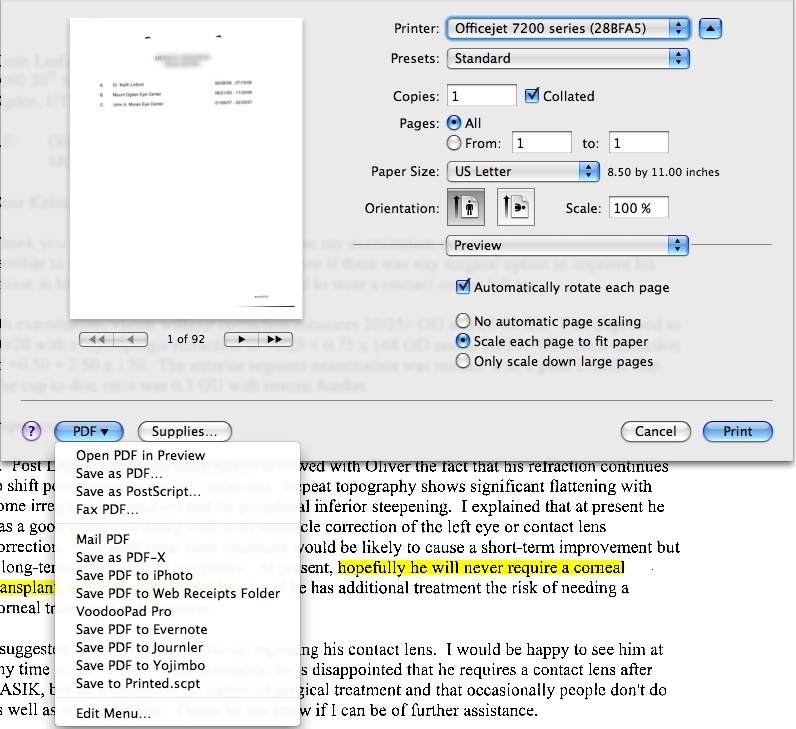
If you have more than one page, Preview will not allow you to create a ‘new’ document from multiple pages. The solution here is to hit Command-p (or print), choose the page range, then click on the “PDF” drop down in the print dialog and choose “Save to Journler.” This will import the full page range as a resource in a new Journler entry under the same dialog as above. Remember, to get the full print dialog allowing you to select individual pages, you need to click on the little blue down arrow next to the printer selection. Note that there are very few ‘clicks’ and most of the entry can be done using the keyboard, saving valuable time in mousing around.
Finally, and regardless of any of the above methods, hit ‘complete import’ and then switch to Journler. You can edit the “Created” date to reflect the actual date relevant to the entry, add tags, make notes in the body or whatever. You should also explore Journler’s powerful Lexicon feature (quite literally an index of every word in Journler and related entries) as well as Journler’s very powerful search and filter dialogs.
Obviously, this alternative approach is much simpler than the previous Applescript/Adobe Pro method and will work for any item that can be opened in Preview, including JPGs, TIFFS etc. However, since each of those items is often a single ‘page’ you might just want to drag and drop the item into Journler.
These methods readily grant the Mac using attorney the ability to not only replace Casemap, but to actually exceed Casemap’s analysis. Journler allows you to view multiple entries and cases at once, in multiple tabs. The full text search and free form approach also make it a breeze to customize your analysis well beyond the static limitations of Casemap. Because Journler encompasses all your cases, you are free to re-use information from other cases unlike Casemap’s one-case-at-a-time approach. Further, using Journler need not be the ‘overkill’ that some view consider Casemap to be. Because it can be as simple or deep as you need, Journler is a definite leap forward in case analysis as compared to Casemap.
 presentation skills. Presentation Zen is a blog run by Gary Reynolds and will undoubtedly bring a huge amount of help to your trial presentation skills. Start here, here, and here for a riotous compare and contrast between Bill Gates/Microsoft and Steve Jobs/Apple approaches to presentation. A few pithy points: